
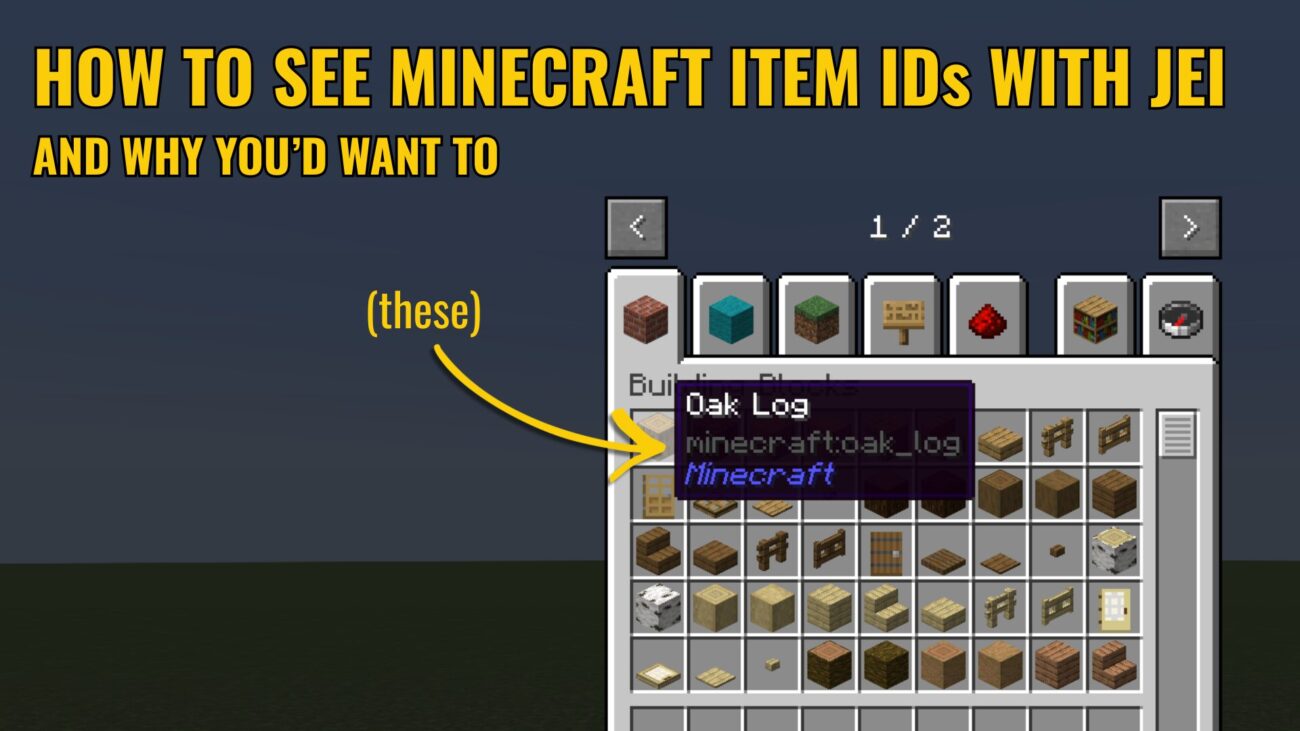
Each item in Minecraft obviously has its own display name, but Minecraft actually uses a separate unique Item ID for each item internally. Oak Logs, for example, have the Item ID “minecraft:oak_log.” Most of these IDs are pretty straight forward — they’re “minecraft:” and then the name of the item. Torches are “minecraft:torch,” for example. Easy, right?
….except a Block of Diamond has the item ID “minecraft:diamond_block.” The Item ID is not always an exact match to the displayed name of the item. So how do you find out what the actual item ID of a Minecraft item is?
Well, First, Why Would You Want To?
Honestly, if you’re playing vanilla Minecraft, you generally don’t need to. There’s not much reason, aside from a few console commands or if you’re making a command block that gives items.
Knowing how to find Item IDs does become important when you’re working with Minecraft mods, though, especially if you’re trying to customize mods for a custom modpack. For example:
- …if you’re working in config files to add raw pork to the loot table to a creature added by a mod, you might need to know the Item ID for raw pork.
- …if you’re using the Item Obliterator mod to remove the recipe for furnaces, you’ll need to know the Item ID for furnaces.
- …if you want to add a recipe to create a particular item in KubeJS, you’ll need to know the Item ID of the item you want to craft and the IDs of all of its ingredients.
So How Do You Find Item IDs?
If you’re only working with vanilla Minecraft Item IDs, you could use a website like https://minecraftitemids.com, which provides a searchable interface for finding every Item ID in the vanilla game. But what if you’re working with items added by a mod? Look at the Item ID pictured below.
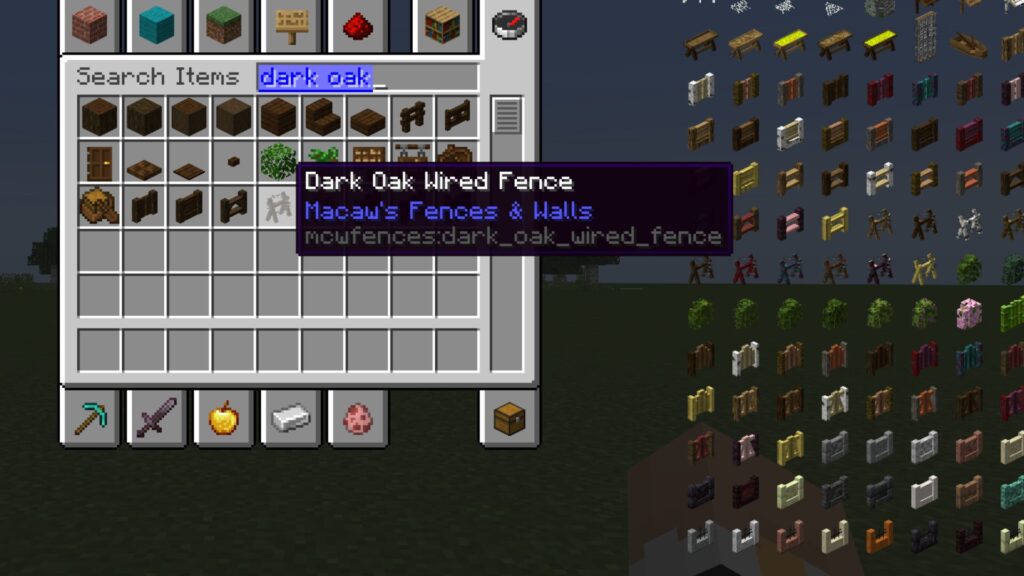
See the difference? The prefix isn’t “minecraft:” it’s “mcwfences:” — the prefix for the Macaw’s Fences & Walls mod. With thousands of possible mods and tens of thousands of possible items, there’s no website that can possibly catalogue them all. Some mod developers do catalogue their Item IDs on a wiki, but these wikis are often incomplete or out of date.
We need a better option for finding item IDs that doesn’t rely on unreliably-maintained mod documentation.
JEI Can Show Item IDs, But It’s Not Obvious
Everybody knows JustEnoughItems, better known by its acronym, JEI. It’s the single most downloaded Minecraft mod of all time. JEI is an item and recipe browser — you can use it to see every item added by every single mod installed on your Minecraft instance, along with crafting recipes to make the item, crafting recipes that use the item, smelting recipes, and a whole lot more.
So it’s really no surprise that JEI can show Minecraft Item IDs — it just doesn’t enable it by default. If we check an item in JEI, we get the item’s name and the name of the mod it comes from (or “Minecraft,” if it’s a vanilla item) but no item ID.
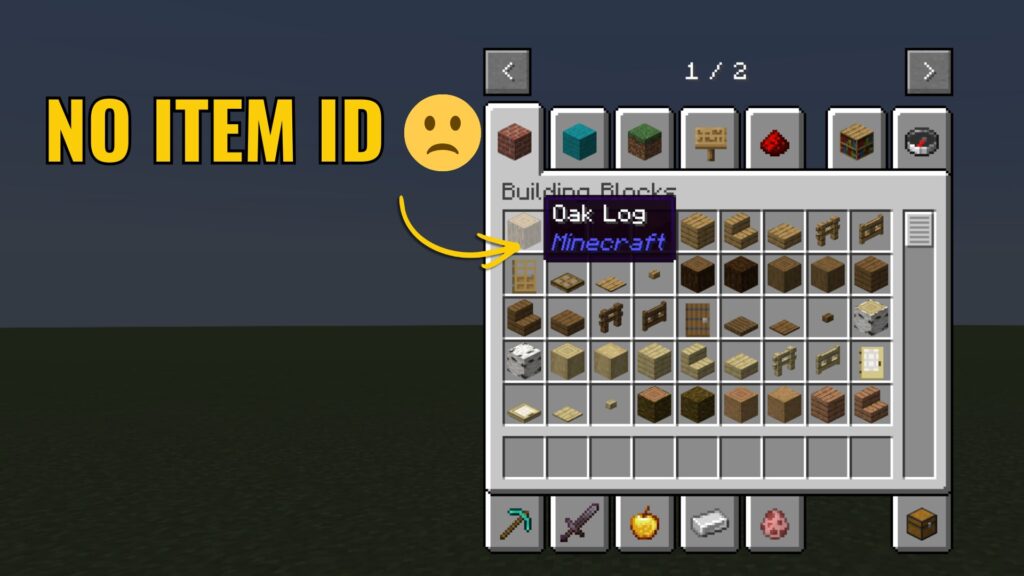
Let’s fix this.
How To Enable Item IDs in JEI
Thankfully, enabling these Item IDs is very simple and it’s included in JEI already.
All we need to do is exit the inventory, hold the F3 key, and then press H. You’ll see a chat message that says “[Debug]: Advanced tooltips: shown.”
![A screenshot from Minecraft. Text over the screenshot reads "Step 1: Hold F3. Step 2: Press H. Step 3: Look for this message." An arrow points down to a chat message reading "[Debug]: Advanced tooltips: shown"](https://www.wobblerocket.com/wp-content/uploads/2026/02/how-to-enable-item-ids-in-jei-1024x576.jpg)
Congrats! You’ve enabled Item IDs in JEI. If we check an item in JEI now, we’ll see a new line added to the item tooltip showing the Item ID:
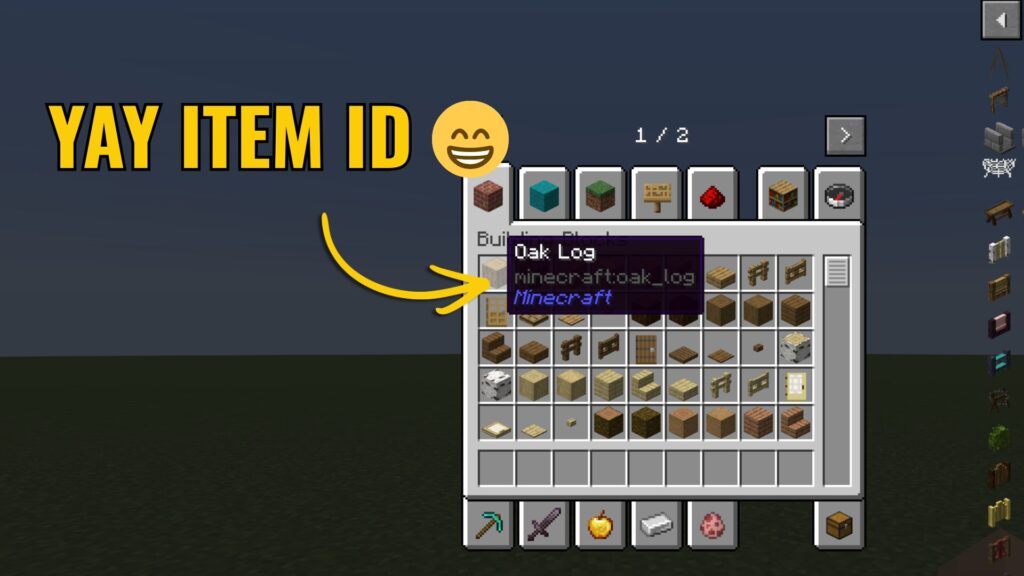
Now you can find the Item ID of every item from every mod in your Minecraft instance, using the powerful search and filtering capabilities of JEI. Just jot down the item IDs you need and you can use them in config files or KubeJS or wherever else you need them.
Happy modding!
Read More